1) Create volume on SAN
2) Follow these high-level steps to move a virtual machine to an alternate location (http://kb.vmware.com/selfservice/microsites/search.do?language=en_US&cmd=displayKC&externalId=1000936):
1.Select the virtual machine.
2.Commit all snapshots on the virtual machine. For more information, see Committing snapshots from within the Service Console (1006847).
3.Identify the working directory of the virtual machine.
4.Identify the location of all virtual disks.
5.Power off the virtual machine.
6.Create a folder for the copy of the virtual machine.
7.Copy the virtual machine configuration file (.vmx) to the new folder.
8.Copy the virtual disks to the new folder. For more information, see Moving or Copying Virtual Disks in a VMware Environment (900).
9.Register the new virtual machine.
10.Add the virtual disk copies to the virtual machine copy.
11.Upgrade the virtual hardware if necessary.
12.Power on the virtual machine.
13.Test the new virtual machine.
14.Optionally, delete the original virtual machine files.
Identifying the working directory
vmware-cmd -l
--> /vmfs/volumes/49bf8b5c-63674280-c015-00215xxxxx/VM_Local/VMx_Local.vmx
Identifying the location of all virtual disks
grep -i vmdk /vmfs/volumes/49bf8b5c-63674280-c015-00215xxxxx/VM_Local/VMx_Local.vmx
--> scsi0:0.fileName = "VM_Local.vmdk"
Creating a folder for the copy of the virtual machine
cd /vmfs/volumes/VM_DISK_C
mkdir VM_SAN
Clone VM
vmkfstools -i /vmfs/volumes/49bf8b5c-63674280-c015-00215xxxxx/VM_Local/IMCAS16_Local.vmdk /vmfs/volumes/VM_C/VM_SAN/VM_SAN.vmdk
Copying the virtual machine configuration file to the new folder
cp /vmfs/volumes/49bf8b5c-63674280-c015-00215xxxxx/VM_Local/VM_Local.vmx /vmfs/volumes/VM_DISK_C/VM_SAN/VM_SAN.vmx
Registering a virtual machine
To register a virtual machine from the ESX Service Console, run the command:
vmware-cmd /vmfs/volumes/4d54fe27-a09c1aa5-80a3-00215xxxxx/VM_SAN/VM_SAN.vmx register
vendredi 11 février 2011

Problem parsing database at line 875 - clamav ERROR: Malformed database on Ubuntu distribution
The problem
"Problem parsing database at line 875 "
"clamav ERROR: Malformed database"
And your clamav-daemon not started
The solution
--> Verify your distribution is up to date
sudo aptitude update
sudo aptitude safe-upgrade
sudo rm /var/lib/clamav/daily.cld
sudo freshclam
sudo /etc/init.d/clamav-daemon start
"Problem parsing database at line 875 "
"clamav ERROR: Malformed database"
And your clamav-daemon not started
The solution
--> Verify your distribution is up to date
sudo aptitude update
sudo aptitude safe-upgrade
sudo rm /var/lib/clamav/daily.cld
sudo freshclam
sudo /etc/init.d/clamav-daemon start
mercredi 2 février 2011
Auto Accept Agent Installation and configuration - Meeting Room auto accept or deny scheduling
Goal : Manage auto accept request for meeting room in Outlook.
First of all, you have to create a resource for the meeting room. So create a normal user with an email (by example : meetingroom1@test.com).
Download the tool AutoAccept.EXE (Resource kit Exchange Server 2003)
http://www.microsoft.com/downloads/en/details.aspx?familyid=3d0884e6-c603-491d-bf57-acf03e046bfe&displaylang=en
To Install Auto Accept Agent
1. On the download page at http://go.microsoft.com/fwlink/?linkid=28650, double-click Download to open the Windows Installer Package (AUTOACCEPT.MSI). Follow the instructions on the screen.
2. In the Auto Accept Agent Installation Wizard, click Next on the Welcome page.
3. On the End User License page, read the license agreement. If you agree to the terms, click I agree and then click Next.
4. The default directory in which Auto Accept Agent installs is \Exchsrvr\Agents\AutoAccept. You can change this default. Click Next. Auto Accept Agent installs.
5. Select Run as Local System (available only if you are running Microsoft Windows Server 2003) or This user. If you select This user, specify the credentials for Auto Accept Agent by providing the username under which Auto Accept Agent will run, the password for this account, and the domain for this account. Click OK.
Edit C:\Program Files\Exchsrvr\Agents\AutoAccept\AutoAccept.config.xml
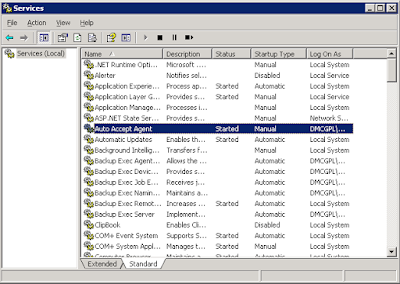
Restart service
Create a file.txt with emails you want to add
Then in a command shell
cscript RegisterMailbox.vbs /f:file.txt /t:domain\username
First of all, you have to create a resource for the meeting room. So create a normal user with an email (by example : meetingroom1@test.com).
Download the tool AutoAccept.EXE (Resource kit Exchange Server 2003)
http://www.microsoft.com/downloads/en/details.aspx?familyid=3d0884e6-c603-491d-bf57-acf03e046bfe&displaylang=en
To Install Auto Accept Agent
1. On the download page at http://go.microsoft.com/fwlink/?linkid=28650, double-click Download to open the Windows Installer Package (AUTOACCEPT.MSI). Follow the instructions on the screen.
2. In the Auto Accept Agent Installation Wizard, click Next on the Welcome page.
3. On the End User License page, read the license agreement. If you agree to the terms, click I agree and then click Next.
4. The default directory in which Auto Accept Agent installs is \Exchsrvr\Agents\AutoAccept. You can change this default. Click Next. Auto Accept Agent installs.
5. Select Run as Local System (available only if you are running Microsoft Windows Server 2003) or This user. If you select This user, specify the credentials for Auto Accept Agent by providing the username under which Auto Accept Agent will run, the password for this account, and the domain for this account. Click OK.
Edit C:\Program Files\Exchsrvr\Agents\AutoAccept\AutoAccept.config.xml
<?xml version="1.0" encoding="utf-8" ?>
- <Configuration xmlns:xsd="http://www.w3.org/2001/XMLSchema" xmlns:xsi="http://www.w3.org/2001/XMLSchema-instance" xmlns="urn:microsoft.exchange.agents.autoaccept.config" xsi:schemaLocation="urn:microsoft.exchange.agents.autoaccept.config AutoAccept.config.xsd">
- <GlobalSettings>
<BookingWindowInMonths>12</BookingWindowInMonths>
<DeleteAttachments>true</DeleteAttachments>
<DeleteComments>true</DeleteComments>
<DeleteNonCalendarItems>true</DeleteNonCalendarItems>
<DisableReminders>true</DisableReminders>
<EnforceRecurringMeetingEndDate>true</EnforceRecurringMeetingEndDate>
<RecurringMeetingConflictPercentageAllowed>0</RecurringMeetingConflictPercentageAllowed>
<RecurringMeetingMaximumConflictInstances>0</RecurringMeetingMaximumConflictInstances>
<RemovePrivateProperty>true</RemovePrivateProperty>
<TraceLevel>0</TraceLevel>
<TraceListenerFile>c:\temp\log.txt</TraceListenerFile>
<TraceToEventLog>false</TraceToEventLog>
<EnableResponseDetails>true</EnableResponseDetails>
<IncludeDebugInResponse>true</IncludeDebugInResponse>
<CustomResponseText />
</GlobalSettings>
- <Mailbox EMailAddress="meetingroom1@test.com">
- <Settings>
<BookingWindowInMonths>12</BookingWindowInMonths>
<DeleteAttachments>true</DeleteAttachments>
<DeleteNonCalendarItems>true</DeleteNonCalendarItems>
<DisableReminders>true</DisableReminders>
<RecurringMeetingConflictPercentageAllowed>25</RecurringMeetingConflictPercentageAllowed>
<RecurringMeetingMaximumConflictInstances>4</RecurringMeetingMaximumConflictInstances>
<TraceLevel>0</TraceLevel>
</Settings>
</Mailbox>
- <Mailbox EMailAddress="meetingroom2@test.com">
- <Settings>
<BookingWindowInMonths>12</BookingWindowInMonths>
<DeleteAttachments>true</DeleteAttachments>
<DeleteNonCalendarItems>true</DeleteNonCalendarItems>
<DisableReminders>true</DisableReminders>
<RecurringMeetingConflictPercentageAllowed>25</RecurringMeetingConflictPercentageAllowed>
<RecurringMeetingMaximumConflictInstances>4</RecurringMeetingMaximumConflictInstances>
<TraceLevel>0</TraceLevel>
</Settings>
</Mailbox>
</Configuration>
Restart service
Create a file.txt with emails you want to add
meetingroom1@test.com
meetingroom2@test.com
Then in a command shell
cscript RegisterMailbox.vbs /f:file.txt /t:domain\username
lundi 31 janvier 2011
PowerShell Find and Delete Old Computer Accounts - Clean Active Directory
PowerShell find all the inactive computer accounts in the domain.
You can do this by this simple line as long as you have the Quest AD Cmdlets installed.
Quest AD Cmdlets are free to download from http://www.quest.com/powershell/activeroles-server.aspx
You can do this by this simple line as long as you have the Quest AD Cmdlets installed.
get-qadcomputer -IncludeAllProperties | Where-Object { $_.lastlogon -lt (get-date).AddDays(-90) }
Quest AD Cmdlets are free to download from http://www.quest.com/powershell/activeroles-server.aspx
vendredi 14 janvier 2011
Retrieve Contacts Address Book - Outlook Cached Exchange Mode - Outlook 2010
You have changed your PC and you want to retrieve your personal contacts in Outlook.
If you use the Cached Exchange Mode in outlook here's how to do :
Click on Tools>Select E-mail Accounts Microsoft Exchange Server>Change>Check the option "Use Cached Exchange Mode"
The proccess will create the .ost files with all your contacts in C:\Documents and Settings\\Local Settings\Application Data\Microsoft\Outlook\outlook.ost
And then (http://support.microsoft.com/kb/197577)
Add the Outlook Address Book service to your profile
To add the Outlook Address Book Service to your profile in Outlook 2007, follow these steps:
1. If Outlook is running, click the File menu, and then click Exit to close Outlook.
2. Click Start, click Control Panel, click User Accounts, and then click Mail.
3. In the Mail Setup-Outlook dialog box, click E-mail Accounts.
4. In the Account Settings dialog box, click New.
5. If you see the Add New Email account-Choose E-mail Service dialog box, click the Microsoft Exchange, POP3, IMAP, or HTTP option, and then click Next.
If you see the Add New Email account-Auto Account Setup dialog box, proceed to the next step.
6. In the Add New Email account-Auto Account Setup dialog box, type your name, e-mail address, and password, and then click Next.
7. When you see the congratulations screen, click Finish.
8. Start Outlook.
To add the Outlook Address Book Service to your profile in earlier versions of Outlook, follow these steps:
1. Start Outlook.
2. On the Tools menu, click Services.
3. Confirm that the Outlook Address Book service is in the list of services. If it is not listed, click Add.
4. In the Available Information Services list, click to select the Outlook Address Book, and then click OK three times to close all dialog boxes.
5. On the File menu, click Exit and Log Off.
6. Restart Outlook using the same profile.
7. Right-click the Contacts folder, and then click Properties.
8. Click the Outlook Address Book tab to verify that the Show this folder as an e-mail Address Book check box is selected.
If you use the Cached Exchange Mode in outlook here's how to do :
Click on Tools>Select E-mail Accounts Microsoft Exchange Server>Change>Check the option "Use Cached Exchange Mode"
The proccess will create the .ost files with all your contacts in C:\Documents and Settings\
And then (http://support.microsoft.com/kb/197577)
Add the Outlook Address Book service to your profile
To add the Outlook Address Book Service to your profile in Outlook 2007, follow these steps:
1. If Outlook is running, click the File menu, and then click Exit to close Outlook.
2. Click Start, click Control Panel, click User Accounts, and then click Mail.
3. In the Mail Setup-Outlook dialog box, click E-mail Accounts.
4. In the Account Settings dialog box, click New.
5. If you see the Add New Email account-Choose E-mail Service dialog box, click the Microsoft Exchange, POP3, IMAP, or HTTP option, and then click Next.
If you see the Add New Email account-Auto Account Setup dialog box, proceed to the next step.
6. In the Add New Email account-Auto Account Setup dialog box, type your name, e-mail address, and password, and then click Next.
7. When you see the congratulations screen, click Finish.
8. Start Outlook.
To add the Outlook Address Book Service to your profile in earlier versions of Outlook, follow these steps:
1. Start Outlook.
2. On the Tools menu, click Services.
3. Confirm that the Outlook Address Book service is in the list of services. If it is not listed, click Add.
4. In the Available Information Services list, click to select the Outlook Address Book, and then click OK three times to close all dialog boxes.
5. On the File menu, click Exit and Log Off.
6. Restart Outlook using the same profile.
7. Right-click the Contacts folder, and then click Properties.
8. Click the Outlook Address Book tab to verify that the Show this folder as an e-mail Address Book check box is selected.
Ubuntu - "is not a valid block device"
You try to mount a network share and you get the error:
mount: //xxx.xxx.xxx.xxx/shared/ is not a valid block device
--> Install smbfs
# aptitude update
# aptitude install smbfs
mount: //xxx.xxx.xxx.xxx/shared/ is not a valid block device
--> Install smbfs
# aptitude update
# aptitude install smbfs
dimanche 5 décembre 2010
SQUID HTTP/1.0 417 Expectation failed - impossible de se connecter à OWA IPhone 3G
Vous avez upgradé votre SQUID à sa dernière version (3.1.9) et depuis vos utilisateurs possédant un IPhone 3G n'arrivent plus à se connecter au webmail (OWA) de la société.
Il va falloir activer une propriété dans votre fichier squid.conf
=> ignore_expect_100 on
C'est expliqué ici : http://www.squid-cache.org/Doc/config/ignore_expect_100/
Il va falloir activer une propriété dans votre fichier squid.conf
=> ignore_expect_100 on
C'est expliqué ici : http://www.squid-cache.org/Doc/config/ignore_expect_100/
This option makes Squid ignore any Expect: 100-continue header present in the request. RFC 2616 requires that Squid being unable to satisfy the response expectation MUST return a 417 error.
Note: Enabling this is a HTTP protocol violation, but some clients may not handle it well..
Inscription à :
Articles (Atom)