lundi 16 juin 2014

Microsoft DFS-R problem : The sysvol permissions for one or more GPOs on this domain controller are not in sync with the permissions for the GPOs on the baseline domain

Hello,
Recently, I encountered a Distributed File System Replication problem in our Active Directory.
Notice : pay attention that the AD replication and Sysvol replication are two very different things. Indeed, the replication of Sysvol is done wit DFS mechanism which replaced FRS since 2008.
In windows 2012r2, through the new Group Policy Management, when I click on "Detect Now", results show ACLs not in sync with the baseline domain...


The sysvol permissions for one or more GPOs on this domain controller are not in sync with the permissions for the GPOs on the baseline domain

First thing, the level of the domain and forest functionnal level is 2008r2.

I check first the DFS Replication with tools provided by Microsoft in the DFS Management Console on the baseline DC (Health Report, Propagation test et Propagation report). The result was ok...
You can use dfsrdiag to check DFS-R operations.
dfsrdiag.exe syncnow /rgname:“domain system volume” /partner:yourBaselineDC /time:1 /verbose

Steps to solve the problem :

1. DNS check on all DCs (the first DNS server must be the DC itself)
2. Resume replication on volume c:\ on the baseline DC
Get the volumeGuid
GWMI -namespace root\cimv2 -class win32_volume | FL -property DriveLetter, DeviceID
Resume replication on volume
wmic /namespace:\\root\microsoftdfs path dfsrVolumeConfig where 'volumeGuid="ce3fb9d1-6ecf-447e-b99c-6e451cab8012"' call ResumeReplication
3. Force the authoritative synchronisation for the DFSR-replicated SYSVOL (was the "D4" when we used FRS in the past) from the PDC Emulator (http://support.microsoft.com/kb/2218556)
a)
Get-ADObject "CN=SYSVOL Subscription,CN=Domain System Volume,CN=DFSR-LocalSettings,CN=YourPDCEmulation,OU=Domain Controllers,DC=domain,DC=com" -properties * 
b) 
Set-ADObject "CN=SYSVOL Subscription,CN=Domain System Volume,CN=DFSR-LocalSettings,CN=YourPDCEmulation,OU=Domain Controllers,DC=domain,DC=com" -Replace @{"msDFSR-Enabled"="FALSE";"msDFSR-Options"=1} 
c) On all other DCs
Set-ADObject "CN=SYSVOL Subscription,CN=Domain System Volume,CN=DFSR-LocalSettings,CN=DCx,OU=Domain Controllers,domain,DC=com" -Replace @{"msDFSR-Enabled"="FALSE"} 
d) repadmin /syncall /AdeP
e) Start of the DFSR service on the PDC Emulator.
f) On the PDC Emulator :
Set-ADObject "CN=SYSVOL Subscription,CN=Domain System Volume,CN=DFSR-LocalSettings,CN=YourPDCEmulation,OU=Domain Controllers,DC=domain,DC=com" -Replace @{"msDFSR-Enabled"="TRUE"} 
g) repadmin /syncall /AdeP
h) From the PDC Emulator in an elevated command prompt : DFSRDIAG POLLAD
i)  Start of the DFSR service on all other DCs
j) On all other DCs  :
Set-ADObject "CN=SYSVOL Subscription,CN=Domain System Volume,CN=DFSR-LocalSettings,CN=DCx,OU=Domain Controllers,domain,DC=com" -Replace @{"msDFSR-Enabled"="TRUE"} 
k) On all other non-authoritative DCs  in an elevated command prompt : DFSRDIAG POLLAD
4) Then reset permissions of all listed GPOs 
In Group Policy Management Console, click on a GPO>delegation tab>Advanced>Advanced>Restore Defaults (or make a script to restore defaults permissions and to keep custom permissions.


Note :

Remember that it's recommended to edit your GPOs from the PDC Emulator. The PDC Emulator is the prefered admistration entry point for services like GPOs and DFS.

When using Remote Server Administration Tools, you can choose the domain controlter to use.

In Administrative Users and Computers console>right click on your domain>change domain controller


Then choose the DC to use. 


mardi 22 avril 2014

VMWare/Powershell - Get Virtual Machine CPU/RAM/Disk/Network usage reports minute by minute and without aggregation of time units

Hi !

The initial goal here is to measure the Virtual machines activity hosted on a ESXi infrastructure. We want to measure activity with an interval of one minute during a period of 24 hours.

The major problem is that Veeam One (tool we use to monitor our virtualized infrastructure), makes aggregation of time units to restrict the size of database and to accelerate reports and graphs generation.

Veeam One, despite the configuration performed at the VMWare hypervisor itself, these rules apply:
  • Raw data (data with 20-second resolution) is stored for 1 hour.
  • After 1 hour, raw data is aggregated to 5-minute resolution data.
  • After 1 week, data with 5-minute resolution is aggregated to 2-hour resolution data. Data with this level of detail is stored in the database for up to 1 year.

We opened a Veeam online ticket to determine with them if there was a possibility to change this behavior and respond well to our needs. Here is the central point of their response:
  • Veeam One Reporter is not able to send out reports with the discression of 1 minute
  • Veeam One Monitor does not send out reports

Bad news :-(

Let's go to script ^^

First sterp, download VMware vSphere PowerCLI: 


Ok, let's load the snap-in which allow us to use the VMWare cmdlets to automate tasks and managementof virtualized infrastructure:
Add-PSSnapin VMware.VimAutomation.Core

Connect to VCenter server :
Connect-VIServer –Server VotreServeurVcenter

Retrieve, for example, CPU values in %, minute by minute, for yesterday :
$statCPU = Get-Stat -Entity $vmToQuery -Stat cpu.usage.average -Start $start -Finish $stop | where{$_.Instance -eq ""}

The simplest way: 
$statCPU = Get-Stat -Entity $vmToQuery -CPU -Start $start -Finish $stop | where{$_.Instance -eq ""}

We get an array with the CPU values in %, minute by minute according to the specified interval.

For example, yesterday with a 24h period, you can use:
$start = (Get-Date -Hour 0 -Minute 0 -Second 0).AddDays(-1)
$stop = (Get-Date -Hour 23 -Minute 59 -Second 0).AddDays(-1)

The first idea is to use this array to generate an Excel file with values in % and timestamp. The second idea is to generate a graph plotting the curves according to the data.

To make these graphs, we can use the great .net 3.5 (or higher) framework : 
[void][Reflection.Assembly]::LoadWithPartialName("System.Windows.Forms.DataVisualization")

Create the chart and the chartarea :
$chart = new-object System.Windows.Forms.DataVisualization.Charting.Chart
$chartarea = new-object system.windows.forms.datavisualization.charting.chartarea

Give appropriate dimensions:
$chart.width = 1500
$chart.Height = 600
$chart.Left = 40
$chart.top = 30

Manage the title:
$titlefont=new-object system.drawing.font("ARIAL",12,[system.drawing.fontstyle]::bold)
$title =New-Object System.Windows.Forms.DataVisualization.Charting.title
$chart.titles.add($title)
$chart.titles[0].text = "CPU/Ram - " + $vmToQuery + " (" + $reportDate + ")"
$chart.titles[0].font = $titlefont
$chart.titles[0].forecolor = "Black"
$chart.Name = $vmToQuery
$chart.BackColor = [System.Drawing.Color]::White

A little bit of colors :-) (Never hesitate to look at the complete list here: http://msdn.microsoft.com/fr-fr/library/system.drawing.color_properties(v=vs.90).aspx) :
$chartarea.BackColor = [System.Drawing.Color]::FloralWhite

Ok, add the chartarea to your chart: 
$chart.ChartAreas.Add($chartarea)

$legend = New-Object system.Windows.Forms.DataVisualization.Charting.Legend
$chart.Legends.Add($legend)

Add the vertical legend of the X-axis with a 15 minutes interval (each point represents one minute)
$chartarea.AxisX.LabelStyle.Angle = -90
$chartarea.AxisX.Interval = 15 

Following lines allow to make a series with a data type and thus if we want, manage different traces on the same graph:
$chart.Series.Add("CPU")
$chart.Series["CPU"].ChartType = [System.Windows.Forms.DataVisualization.Charting.SeriesChartType]::Line
$chart.Series["CPU"].color = "blue"

Go through the array, and add each value to a psobject (http://msdn.microsoft.com/en-us/library/system.management.automation.psobject(v=vs.85).aspx)  

Then, we cast our timestamp and we add our points to the chart series "CPU" ($chart.Series["CPU"].Points.AddXY($dtToString, $t.Value)):

 foreach($t in $statCPU) {  
    $out = new-object psobject

    $out | Add-Member noteproperty timeStampCPU $t.Timestamp
    $out | Add-Member noteproperty valueCPU $t.Value
   
    $dtToString = $t.Timestamp
    [string]$dtToString = $dtToString -f "hh:mm"

    $chart.Series["CPU"].Points.AddXY($dtToString, $t.Value)

    $result += $out   
} 

$chartarea.AxisY.Title = $unitCPU

$filename = $logFolder + "\" + $vmToQuery + "_" + $reportDate + ".png"
$chart.SaveImage($filename, "PNG")

CSV export (parameter –append needs Powershell v3.0) :
$result | Export-CSV -path $logFile –append –NoTypeInformation  

I consolidated the CPU and RAM usage information on the same graph to finally get this:


Same things for Network and Disk usage:

$statRAM = Get-Stat -Entity $vmToQuery -Stat mem.usage.average -Start $start -Finish $stop
$statNetwork = Get-Stat -Entity $vmToQuery -Network -Start $start -Finish $stop
$statDisk = Get-Stat -Entity $vmToQuery -Disk -Start $start -Finish $stop  

You can get this result:


Have fun :-)

dimanche 23 mars 2014

Clone a Domain Controller in Windows Server 2012 with Hyper-V (VM-GenerationID)

Preamble : VM-GenerationID

One of the obvious reasons of virtualization is the independence of virtual machines with hardware. It is very simple to clone a Virtual Machine (VM) in a virtualized infrastructure.

But can we clone any VM?

It’s not easy to answer this question. The smart answer would be to say as often: "It depends".

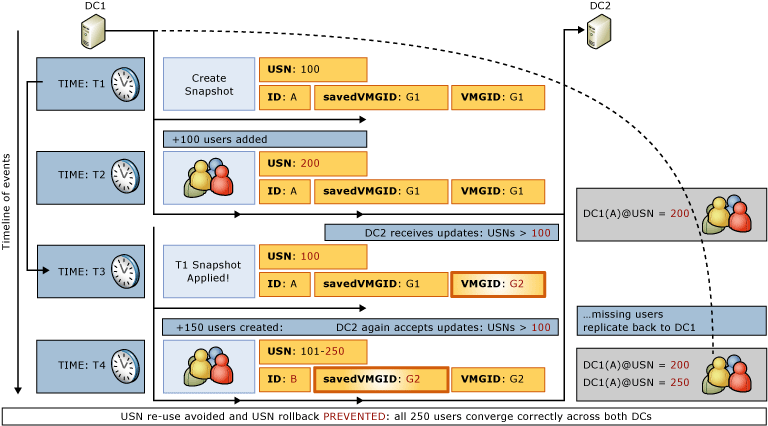
Until the 2012 version of Windows Server, clone a VM hosting ADDS (Active Directory Domain Services) was forbidden. Indeed, clone or restore a Domain Controller, could certainly cause a "USN rollback".

One of the major benefits in Microsoft Windows 2012 Server version is the VM-GenerationID.

It’s an identifier encoded in 128 bits and provided by the hypervisor through a specific driver.

You can check inside a VM if you’ll be able to clone a Domain Controller. Let’s explore the device manager of a VM hosted by Hyper-V hypervisor running on a Windows 8 machine. Here you can see how this test lab was created.


If you see the device "Microsoft Hyper-V Generation Counter", your hypervisor will be able to manage the VM-GenerationID and thus you will be able to clone a Domain Controller.


The VM-GenerationID is generated and stored on the Domain Controller as an attribute of the Active Directory database. This attribute is not replicated.

The VM-GenerationID is recorded in the Active Directory database NTDS.dit as the attribute msDS-GenerationID.


You can see it by logging on the DC you want to check and display its attributes. You can easily do this via ADUC or ADAC.


1) Prerequisites 

Clone a DC should meet the following prerequisites:


  • As we have just seen, your hypervisor must support VM-GenerationID. This is the case with Hyper-V running on Windows 8 and on Windows Server 2012. 
  • The DC source must be running on Windows Server 2012 
  • The DC source can't hosted the PDC emulator role. In addition, the DC which hosts this role must be available and must be running on Windows Server 2012. 

Though, you must have at least two DCs in your infrastructure to begin cloning a DC.

2) Prepare the source DC

To clone a DC, you must first prepare it to be cloned. The first step is to add your source DC to the security group "Domain Controllers Cloneable". You have several options to do this.

The first through the ADAC or even ADUC.


The second way is to do it via powershell.


Add-ADGroupMember "Cloneable Domain Controllers" "CN=DC02,OU=Domain Controllers,DC=LABO,DC=COM"


Ok, our source DC is now a member of the security group "Domain Controllers Cloneable". We're going to continue to prepare it.

Technet tells us that we need to launch a first command before starting the cloning process. Indeed, we need to determine what programs and services are not present on the default supported list "DefaultDCCloneAllowList.xml" or a user-defined inclusion list named  "CustomDCCloneAllowList.xml" and thereby not supported by the cloning process because it have not been evaluated for cloning impact.


Get-ADDCCloningExcludedApplicationList


The result of the command is pretty clear in my case: "No excluded applications were detected". We can go further. However, in some cases you need to run a second command to generate your own .xml file containing the list of applications or services you want to add (because supported).

Here is an example (launched on a lab test running ESXi 5.1).


We type a second command to generate the .xml file.


Get-ADDCCloningExcludedApplicationList -GenerateXml


We can find the generated .xml file "CustomDCCloneAllowList.xml" in "C:\Windows\NTDS\".


To complete the warm-up, we have to launch a one last command:


New-ADDCCloneConfigFile -Static -IPv4Address "192.168.1.12" -IPv4DNSResolver "192.168.1.10" -IPv4SubnetMask "255.255.255.0" -CloneComputerName "DC03" -IPv4DefaultGateway "192.168.1.1" -SiteName "Default-First-Site-Name"


This command will generate a new .xml file: "DCCloneConfig.xml". By enter this command, we have specified the future cloned DC name and its network configuration.


The cloned DC must be on the same site.

Let's edit the configuration file of the DC02 virtual machine:


We find the number "genreration_id" with this hexadecimal value : "5683b796635a6015936e3117daa5b751".


The value for the msDS-GenerationId attribute is 51 B7 A5 DA 17 31 6E 93. By inverting the value found in the xml file of the virtual machine we find the same value 936e3117daa5b751 -> 51b7a5da17316e93


3) Export of the prepared VM and import in the new VM

Shut down the DC DC02 we just prepared.


In Hyper-V, select the VM to export (DC02 in this case) and choose the option "Export..."


Then, simply specify where you want to export your VM.


I've created, for this lab, a Export folder under the folder Labo on my G:\ disk which is, actually, a virtual disk hosted by a Synology NAS.


Let the export finished and then you get the tree Hyper-V created.


A .vhdx has been exported..


And the .xml configuration file.


Now, the import step. Select your node and "Import Virtual Machine...".


The import process is very simple "Next >"


"Browse".


Select the cloned VM root folder, here, for the example DC02. 


 "Next >".


Hyper-V detect a VM and  "Next >" ;-)


We want that Hyper-V create a new unique ID "Next >".


>Store the VM where you want "Next >"


Where you want to store the .vhdx.. "Next >"


It's finished! Check the review of the import and click on "Finish".


Hyper-V begins the importation process.


Once the import is complete, if you edit the .xml configuration file of the imported VM, you can observe that the generation_id field has been modified.

DC02 .xml


DC03 (imported VM) .xml


Rename the VM. Right click on the imported VM and click on "Rename..."


It's done ! Start DC02 and then DC03.


Starting of DC03...


The DC found out it was a clone, so it starts the cloning process.


DC03 restarts once.


Check the Sites and Services console. You can see the new DC.


And present also in ADUC and ADAC.


If the properties of DC03 (DC resulting from cloning) is edited, you can see that the VM-GenerationID is different from the source DC DC02.


4) Detailed cloning process

Technet explains exactly what happens during the cloning process. Here is the diagram published by Microsoft to explain it.


5) Cloning went wrong ?

In case your cloning is wrong, the source DC will restart in Directory Service Restore Mode (DSRM). You need to login locally and removed the flag for DSRM mode. Then cloning and restart after, obviously, correcting the error that prevented you to clone the source DC correctly. 

You can do this in two ways.

a) Via Msconfig


b) If you are in CORE Edition, via the command shell


bcdedit.exe /deletevalue safeboot


6) Conclusion

This tutorial is now complete.

We can see the great interest of the VM-GenerationID addition by Microsoft. Yeah, because it also opens the way for snapshot DC.

Indeed, before this improvement, clone a DC could lead to serious inconsistencies in our AD database as shown in this diagram (source).


It is now managed as shown in the following scheme (source).